Emojis can make an email feel warmer, friendlier, and more expressive when they’re used thoughtfully.
The emoji for Outlook is a simple way to add personality to an email without relying entirely on words. Whether you’re sending a quick thank-you, celebrating good news, or adding a friendly touch to an informal message, emojis can help communicate tone. Microsoft confirms that Outlook supports emoji insertion, and on Windows you can open the emoji picker with Windows key + period (.) while composing an email.
What Is an Emoji for Outlook?
An emoji for Outlook is simply an emoji inserted into an Outlook email. Common choices include 😀 for friendliness, 👍 for acknowledgment, ❤️ for appreciation, 😊 for warmth, and 🎉 for celebration.
The best emoji depends on the purpose and audience of your message. A casual email to a friend can use emojis more freely, while a professional business email usually benefits from a more restrained approach.
Microsoft’s Outlook guidance notes that Windows includes a large collection of emojis that can be inserted directly into email messages.
How to Add Emojis in Outlook
Adding an emoji to an Outlook email is straightforward on supported Windows versions.
Start a new email or reply to an existing message. Place your cursor where you want the emoji to appear, then press Windows key + . (period) to open the Windows emoji picker.
You can browse categories or search for an emoji by keyword. Select the emoji you want, and it will be inserted into the message.
You can also copy and paste an emoji directly into an email. The exact appearance may vary depending on the recipient’s operating system, email application, and available emoji support.
Best Emojis for Outlook Emails
Some emojis work particularly well in everyday emails because their meanings are easy to understand.
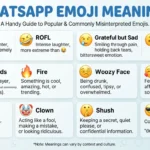
😊 Smiling Face: A friendly way to make an informal message feel warmer.
👍 Thumbs Up: Useful for acknowledging information or confirming something.
😀 Grinning Face: Adds an upbeat and cheerful tone.
❤️ Red Heart: Can express appreciation or affection, although it is usually better suited to personal rather than formal business messages.
🎉 Party Popper: A natural choice for celebrations, achievements, and congratulations.
🙏 Folded Hands: Can communicate thanks or appreciation depending on context.
Professional vs. Casual Emoji Use
The most important part of using an emoji in Outlook is understanding your audience.
For professional emails, keep emoji use limited. A simple 👍 or 😊 may work in an informal workplace conversation, but a formal proposal, application, or official notice may be better without emojis.
For personal emails, you have more freedom. Friends and family generally understand expressive combinations more easily, and emojis can make short messages feel less cold.
For team communication, emojis can sometimes make quick acknowledgments easier. For example, a 👍 can communicate that you’ve seen and understood a message without requiring a full reply.
Emoji for Outlook Copy-and-Paste Ideas
Here are some simple emojis you can copy directly into Outlook:
- 😀 — Friendly and cheerful
- 😊 — Warm and pleasant
- 👍 — Approval or acknowledgment
- ❤️ — Appreciation or affection
- 🎉 — Celebration
- 🙏 — Thanks or appreciation
- 👏 — Congratulations or praise
- 💡 — Idea or suggestion
- ✅ — Confirmation or completion
- 📌 — Important information
When using emojis professionally, choose symbols whose meaning is unlikely to be misunderstood.
How to Use Emojis Professionally
Emojis should support your message rather than replace important information.
For example, instead of sending only “👍,” you could write, “Thanks for confirming. 👍” This keeps the communication clear while adding a friendly touch.
Similarly, “Congratulations on the achievement! 🎉” communicates both the information and the positive emotion.
Avoid filling a professional email with multiple unrelated emojis. One well-placed symbol is often more effective than a long string.
Why Emojis May Look Different
The emoji character itself is standardized, but different platforms can display it using different artwork. As a result, an emoji sent from one device may not look exactly the same when viewed elsewhere.
This matters when sending Outlook emails to people using different operating systems or email applications. The recipient may see a slightly different design even though the underlying emoji is the same.
For important professional communication, make sure the written words clearly communicate your meaning rather than depending entirely on the emoji.
Outlook Emojis and Email Tone
An emoji can subtly change how a sentence feels.
Compare “Thanks for your help.” with “Thanks for your help! 😊” The second version may feel warmer and more conversational.
However, tone is subjective. An emoji that feels friendly to one recipient could feel too casual to another. When communicating with someone for the first time, it is usually safer to keep your emoji use minimal.
Emoji Reactions in Outlook
Outlook also supports reactions for eligible email environments. Microsoft explains that Outlook reactions can let recipients respond quickly to an email without writing a full reply. Full reaction functionality depends on the mailboxes and Outlook environment involved.
This is different from inserting an emoji directly into the body of an email. An inserted emoji becomes part of your written message, while a reaction is an interaction with the received email.
FAQ
1. How do I get emojis in Outlook?
On Windows, place your cursor in the email and press Windows key + . (period) to open the emoji picker. Select an emoji to insert it into your message.
2. Can I copy and paste emojis into Outlook?
Yes. You can copy a supported emoji and paste it directly into an Outlook email. Its appearance may vary on the recipient’s device.
3. Are emojis appropriate for professional emails?
They can be appropriate in informal workplace communication, depending on your organization and relationship with the recipient. For formal messages, use them sparingly or leave them out.
4. Why does my emoji look different after sending?
Different operating systems and applications use their own emoji artwork. Therefore, the same standardized emoji can have a slightly different appearance on another device.
Conclusion
Using an emoji for Outlook can add warmth and personality to everyday emails when the context is right.
Keep professional messages clear, choose familiar symbols, and consider your relationship with the recipient before adding an emoji.
For quick personal or informal communication, a carefully chosen emoji can make a short Outlook message feel considerably more natural.